
Docs / Settings
Smart Groups
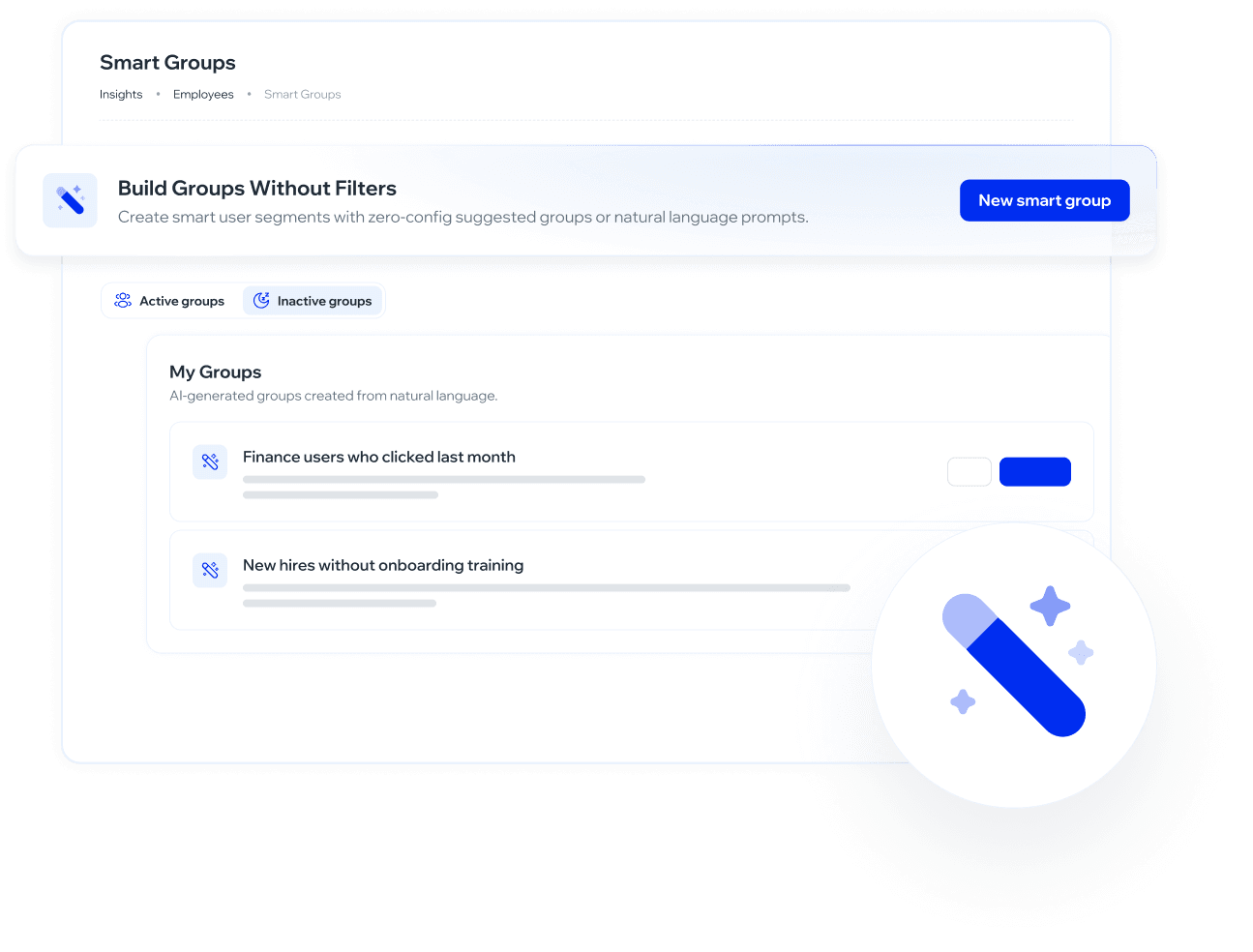
Smart Groups let you create employee segments using natural language. Instead of setting up manual filters, you describe who you want to include and AI generates the group automatically.
What is it for?
Create specific audiences for simulation or training campaigns without configuring complex filters.
Quickly identify users with risky behaviors: recent clickers, new hires without training, repeat offenders, and more.
Reuse active groups across multiple campaigns, keeping them always up to date.
Manually adjust results by excluding individual users who don't match the criteria.
Organize employee management into actionable segments without depending on the technical team.
How to use it?
Navigation: Settings → Employees → Smart Groups
Create a new Smart Group:
From the Smart Groups main screen, click New Smart Group.
In the form that opens, fill in:
Group name (required): e.g. "High-risk users in the last 20 days"
Describe the criteria (required): write in plain language who should be part of the group. You can write freely or use one of the available quick suggestions:
High-risk users
New hires without training
Recent clickers
No simulation received
Click Generate. The AI processes the criteria and builds the group in the background.
While generating, the group appears in the Inactive Groups tab with the status Generating…
Once ready, a notification appears: "Your group is ready to go!", with quick actions to View or Activate.
Groups are AI-generated and labeled AI-Generated in their detail view.
Preview results before activating:
Click View to review the group preview.
The screen shows a Result Preview with the list of users matching the criteria and the total count (e.g. Users: 1).
From here you can:
Click Activate to enable the group.
Click Save to save it without activating it yet.
Click Discard Group to delete it without saving.
Activate a group:
When activated, the group moves to the Active Groups tab and becomes available to use in campaigns, enrollments, and analytics.
The active group screen shows the full list of included users with the option to individually Exclude each one.
When excluding a user, a modal opens asking for a reason. The options are:
Does not represent the criteria
Already addressed via another channel
Data quality issue
Other
This field is required to confirm the exclusion.
Deactivate a group:
From the edit view of an active group, click Deactivate. The group moves to Inactive Groups and can be reactivated from there.
Accessing a Smart Group from the Employees view:
Smart Groups also appear in the Employees & Groups section, under the Groups tab. AI-generated groups are identified with the (Smart) label next to their name.
From that view, clicking the three-dot menu (⋮) on a Smart group shows the following options:
View — opens the group detail screen with its current members.
Edit — takes you directly to the Smart Group edit screen, where you can modify the name and exclude users.
Deactivate — deactivates the group without deleting it.
Delete — permanently deletes the group.
This is an alternative access path. The main Smart Group management flow remains at
Settings → Employees → Smart Groups.
Using Smart Groups in other parts of the platform:
Once a Smart Group is active, it becomes available in the group selector across:
Academy enrollments — you can use it to assign training to the employees in the group.
Analytics and statistics — the group appears listed alongside the rest of the organization's groups, so it can be selected in any group selector across the platform.
Only Active groups appear in these selectors. Inactive groups are not visible until reactivated.
❓ Frequently asked questions
Can I edit the criteria of a group after creating it?
Yes. From the group's edit view you can modify the name. If you need to change the criteria from scratch, the easiest approach is to create a new group.
What if a user shouldn't be in the group?
You can manually exclude them from the group view. A reason will be required before confirming.
Do groups update automatically when organizational data changes?
Yes. Smart Groups are dynamic: the system automatically recalculates who meets the criteria as organizational data changes.
When should I use Inactive Groups instead of Active?
Save a group as inactive when you're not ready to use it in campaigns yet but want to keep it for later. Only active groups are available to assign to simulations, training, or to filter analytics.
Can I create multiple groups with similar criteria?
Yes, there's no visible group limit. Each one is generated independently and can have its own activation/deactivation cycle.
Have feedback or want to request improvements? Let us know at roadmap.whalemate.com/roadmap
Was this helpful?