
Simulaciones - Smishing
Crea y lanza simulaciones de phishing por SMS (smishing) en 4 pasos: Básicos → Configuración → Mensaje → Entrega.
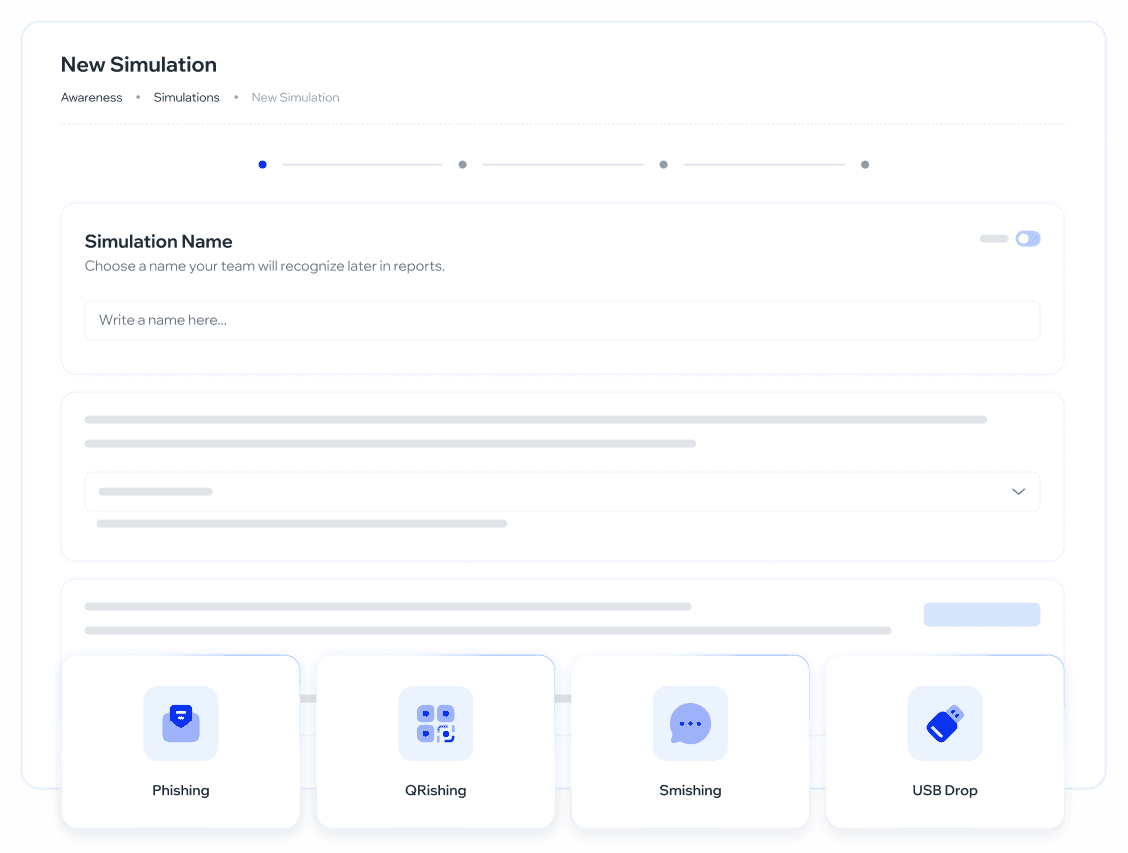
Las simulaciones por SMS son una versión beta: pueden presentar errores o fallas, y todavía no están completas ni finalizadas. Se habilitan por CX para cada empresa — si al crear un lanzamiento no ves la opción Smishing, escríbele a tu contacto de CX para activarla.
¿Para qué sirve?
Permite poner a prueba la resiliencia de los empleados ante mensajes SMS fraudulentos, replicando ataques reales de smishing.
Ayuda a identificar qué colaboradores son más vulnerables a este tipo de amenaza.
Permite segmentar la audiencia con precisión: todos los empleados con celular válido, o una selección personalizada por empleado, departamento o grupo.
Ofrece plantillas de mensajes listas para usar, o la opción de redactar un mensaje propio con variables dinámicas como el nombre del destinatario.
Permite asignar entrenamiento automático a quienes caigan en la simulación, cerrando el ciclo de concientización. (Próximamente)
¿Cómo se usa?
Navegación: Concientización → Simulaciones → Nueva simulación → Smishing
Paso 1 — Básicos
Desde el menú lateral, ir a Concientización → Simulaciones y hacer clic en + Nuevo lanzamiento.
En la pantalla de selección de tipo, elegir Smishing.
Ingresar el nombre de la simulación (se usará para identificarla en los reportes).
Si quieres hacer un envío de prueba interno antes del real, activa el toggle Test en la esquina superior derecha. Las simulaciones en modo Test no se contabilizan en las analíticas ni en el Human Risk Score.
Hacer clic en Continuar.
Paso 2 — Configuración
Seleccionar el idioma de la simulación desde el desplegable: Español, Inglés o Portugués.
En la sección Audiencia, elegir una de las opciones disponibles:
Audiencia sugerida (próximamente): empleados que la plataforma identifica en riesgo y que tienen número de celular válido.
Todos los empleados: incluye a todos los colaboradores con número de celular válido. El contador Usuarios seleccionados se actualiza automáticamente.
Audiencia personalizada: abre un modal de selección avanzada.
Si eliges Audiencia personalizada, se abre un modal con tres pestañas: Empleados, Departamentos y Grupos. Puedes combinar selecciones de las tres pestañas; la plataforma las unifica en una sola audiencia.
Usa el buscador para filtrar por nombre.
Activa el toggle Número de teléfono válido para ver solo empleados con número de celular cargado.
El panel derecho muestra el resumen: Total de usuarios, Usuarios alcanzables y Excluidos.
Al finalizar, hacer clic en Aplicar.
El campo Usuarios seleccionados en la sección de Audiencia se actualiza con el total confirmado.
En Tipo de simulación, elegir entre:
Solo clic: el empleado recibe un SMS con un link y se registra si hace clic.
Cosecha de credenciales: el empleado es redirigido a una página de login falsa donde puede ingresar sus datos.
En Resultados de la simulación, elegir la Página de recomendación que verá el usuario al caer en la simulación. Se selecciona desde un desplegable con múltiples opciones.
Activa el toggle Preview para previsualizar la página seleccionada antes de confirmar.
En Asignación de entrenamiento (próximamente), activa el toggle si quieres que se asigne automáticamente un curso a quienes caigan en la simulación.
Hacer clic en Siguiente.
Paso 3 — Mensaje
En la sección Mensaje, elegir una de las dos opciones:
Elegir plantilla de Smishing: selecciona una plantilla prediseñada desde el desplegable.
Escribir tu propio SMS: redacta el mensaje desde cero en el campo de texto libre.
El panel de Preview a la derecha muestra en tiempo real cómo se verá el SMS en el celular del destinatario, incluyendo las variables dinámicas como
{{FirstName}}.Próximamente: el mensaje podrá incluir el indicador "Alta entregabilidad", que confirma que tiene alta probabilidad de llegar sin ser filtrado.
Hacer clic en Siguiente.
Paso 4 — Entrega
Elegir cuándo se enviará la simulación:
Período de tiempo: la plataforma distribuye el envío en un rango de tiempo.
Fecha específica: se programa para un día y hora determinados.
Enviar ahora: se envía de forma inmediata al confirmar.
Hacer clic en Preview & Send para revisar la configuración final antes de lanzar.
En el modal de confirmación Preview & Send se muestra un resumen con: nombre de la simulación, cantidad de usuarios alcanzables, modo de entrega, y una previsualización del mensaje con la página de recomendación asignada.
Hacer clic en Enviar para lanzar la simulación.
❓ Preguntas frecuentes
¿Por qué no veo la opción Smishing al crear un lanzamiento?
Porque todavía es una versión beta y se habilita empresa por empresa. Escríbele a tu contacto de CX si quieres probarla.
¿Qué diferencia hay entre "Audiencia sugerida" y "Todos los empleados"?
La audiencia sugerida (próximamente disponible) priorizará a empleados que la plataforma identifica como en riesgo y que tienen número de celular válido. "Todos los empleados" incluye a cualquier colaborador con número cargado, sin importar su historial
¿Puedo combinar empleados, departamentos y grupos en la misma campaña?
Sí. En el modal de selección de audiencia personalizada puedes seleccionar elementos de las tres pestañas; la plataforma los unifica en una sola audiencia.
¿Qué pasa si un empleado no tiene número de celular cargado?
No será alcanzable para la simulación. El toggle Número de teléfono válido en el modal de audiencia permite filtrar y ver solo quienes tienen número válido. El resumen muestra los Usuarios alcanzables para que sepas exactamente a cuántos llegará el SMS.
¿Puedo personalizar el mensaje con el nombre del destinatario?
Sí. Las plantillas y el campo de texto libre soportan la variable {{FirstName}}, que la plataforma reemplaza automáticamente con el nombre de cada empleado al momento del envío.
¿Qué es el modo "Test"?
Permite enviar la simulación como prueba interna antes de lanzarla al público real. Las simulaciones en modo Test no se contabilizan en las analíticas ni en el Human Risk Score. Se activa con el toggle Test en el paso de Básicos.
¿Tienes feedback o quieres solicitar mejoras? Háznoslo saber en roadmap.whalemate.com/roadmap